3.3.1 My New Library - How to check books out manually (Bulk checkout)
This will explain how to use the bulk checkout feature "Manual Checkout"; Which allows librarians to checkout one or many books for patrons. (LIBRARY, MANUAL, CHECKOUT)
There are two ways for books to be checked out to patrons; Bookbag, and Manual. Manual Checkout is for patrons who have simply picked up books off the shelf, and brought them to the checkout desk.
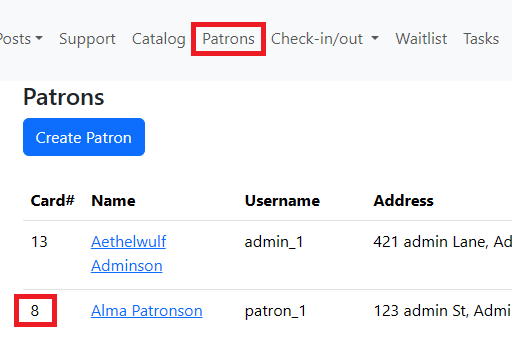
Step 1. Go to "Patrons" and get the patron's library card number.
Step 2. Go to "Check-in/out" and then "Manual Checkout".

Step 3. Select the "Check Out" radio button, enter the patrons card number in the "Card#" field.
In the "Library Serial Number(s)" field you can enter either the serial number created by Pibliotheca, or you can enter your own barcode number if one has been assigned to the book. (Please see "How to use custom barcodes" for instructions for assigning custom barcodes to books)

I recommend buying a barcode scanner for this, as it will enormously speed up the process of entering these numbers. Simply place the cursor in the "Library Serial Number(s)" field and start scanning barcodes; one per line.
Step 4. Click Submit.
If there are issue with any of the books, it will flash a warning for each book that has an issue. All books without issues will be checked out to the patron.
Step 5. (Optional) Now you can go to the Tasks button, filter by your patron, and you can see all the checked out books for that user.