3.5 My New Library - Patron management.
This will cover managing patrons and giving administrator access.
Click the patrons tab to see your patrons dashboard.

In the patrons dashboard you can send a patron a status email for their books.
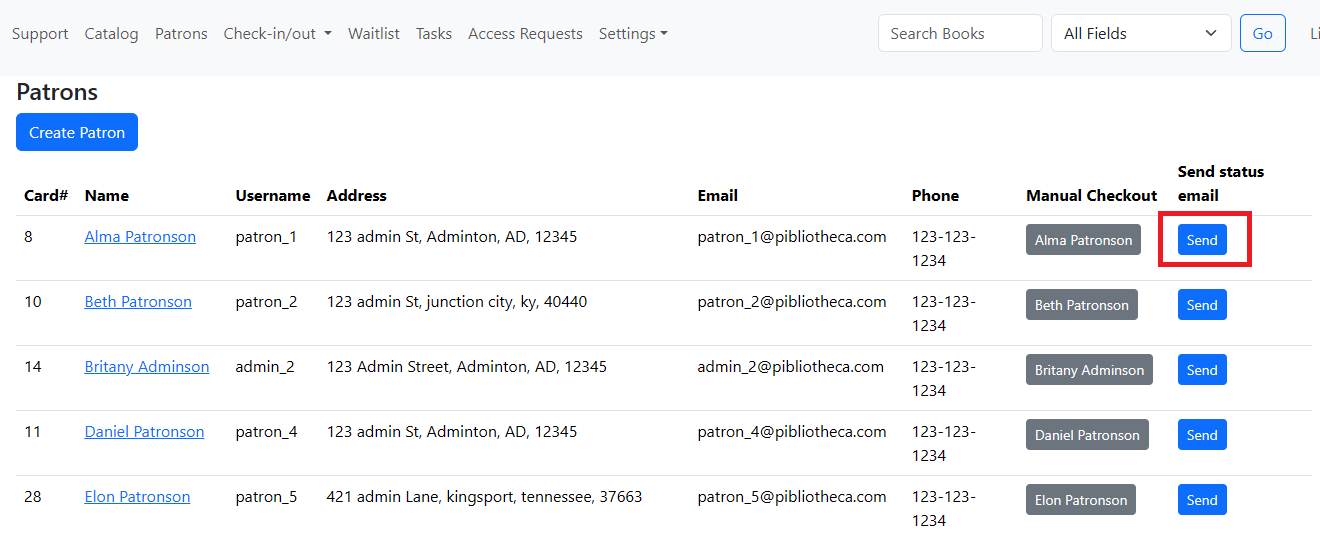
A pop-up will ask you to confirm sending the email to prevent accidental sends.

If you click manual checkout, it will send you to the Manual Checkout page, auto filling the library card number with that patrons number.

Clicking on the Patrons name will open that patrons information box.

In the patron information we can perform 4 operations:
1. Create a onetime password.
This is used only for patrons that do not have email addresses on file. Since they do not have a email address, the "password reset" function will not work for them. So a librarian can create a one-time password, which they give to the patron. When the patron logs in, they are forced to immediately update their password.

The librarian must record the password given in the the banner message, and give it to the patron. It will not be viewable after the page is refreshed or closed.

2. Set a patron account as an administrator for your library.
This will give the patron full access to administer the library.

3. Disable a patrons access to your library.
This will prevent a patron from logging into your library. It can always be undone later. (NOTE: This only prevents new logins, if they are already logged in, it will not log them out.)

4. Forgive, or mark late-fees as "Paid"
Late-fees are further explained in support article 3.4
