1.0 BETA - The Signup Process
This document will discuss the process for new customers to sign up while the site is in Beta.
Firstly, thank you for agreeing to help in the Beta testing of Pibliotheca. I think this will be enormously illuminating and, hopefully, to both our benefit.
How to sign up.
1. Go to https://pibliotheca.com/create-library , the library creation page.
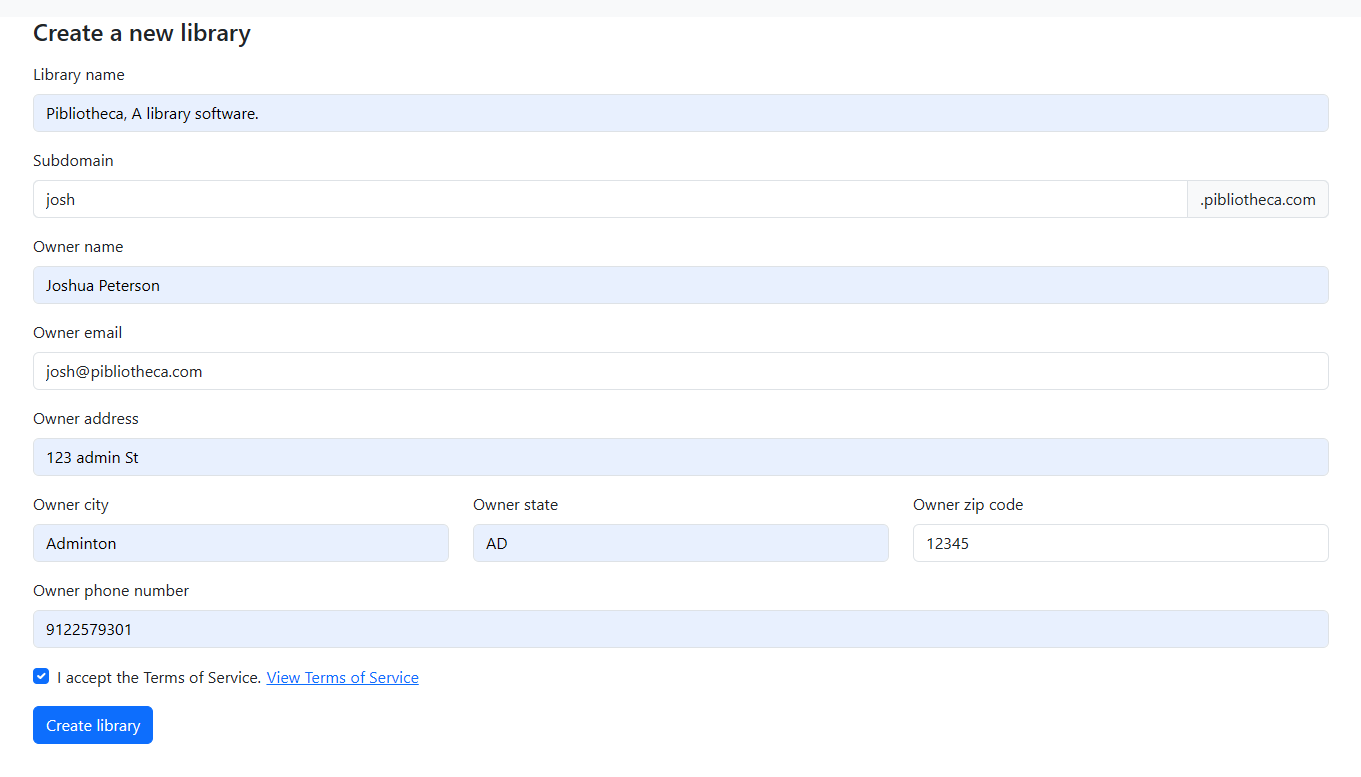
2. The first field, "Library Name", is your libraries name as you want customers to see it. This will appear on browser tabs, on your navigation bar, and in your email subject lines. It can be changed later.
3. The second field is your subdomain. This is the internet location you and your patrons will use to access your library. Whatever you put here will go at the front of ".pibliotheca.com". So if you put "josh", like in the image, your domain would be "https://josh.pibliotheca.com". If you put "littlelendinglibrary" in the field, your domain would be "https://littlelendinglibrary.pibliotheca.com". Try to keep this short and memorable. If the subdomain you want is already in use, you may have to change it slightly. we cannot accept duplicate subdomains.
4. The third is your name.
5. The fourth field, "Email" is your email. This is where your password reset email will be sent for administrative access to your library. It will look something like this:

If you already have a patron account with that email, your old account will still be your account, you will simply gain access to your new library within the same login you already created. Your new library will be accessible via the library selection dropdown. (You can be both admin and patrons of multiple libraries.)

6. The Fifth field, "Address" is the address of record for mail or other communications. This need not be the libraries physical location. Physical location can be configured after signup.
7. Lastly fill out your phone number and accept the Terms of service. Click "Create Library".
8. This will forward you to Stripe. Pibliotheca will be a subscription once its fully implemented, and so billing is part of the beta testing, but we will be using dummy credit cards in Stripes sandbox mode.

9. When you get to the Stripe sign up page above, your credit card number will be 4242 4242 4242 4242, and the expiration date can be any date in the future (02/42 for instance). the CVC can be any three digit number (424 works just fine). Put in your other information as you normally would, and hit the button to pay. you should get redirected back to Pibliotheca and a success banner. Check your email for your New Library Welcome email. Be sure to check your spam folder.
Click the link in the email and set your password. Once your password is set, it will direct you to the login page. Log in and you are ready to go!
I've written many support articles that describe initial library setup, and how to perform basic functions within Pibliotheca, and published them here: https://golf.pibliotheca.com/support; but if there is anything you need help on, let me know and I will help you, and try to write a article for it as well. Support and documentation are an important part our of success.